

Embedding Grady-White Videos in Your Site
Embedding a Grady-White video in your website is a great way to promote the product. If you follow the steps listed below, the video you choose will appear in your site like this example video:
Related Pages
Pre-Edited Videos
Download ready-to-use videos for making DVDs, storing on flash drives and other devices, and using at boat shows and events.
Video Library
Download short video clips for use in your own productions.
Step 1: Visit the Grady-White YouTube channel to find the video you want to embed on your site. You can browse the full list of videos, or you can search for a specific video by clicking on the magnifying glass symbol, typing your search terms, and pressing the Enter or Return key on your keyboard.

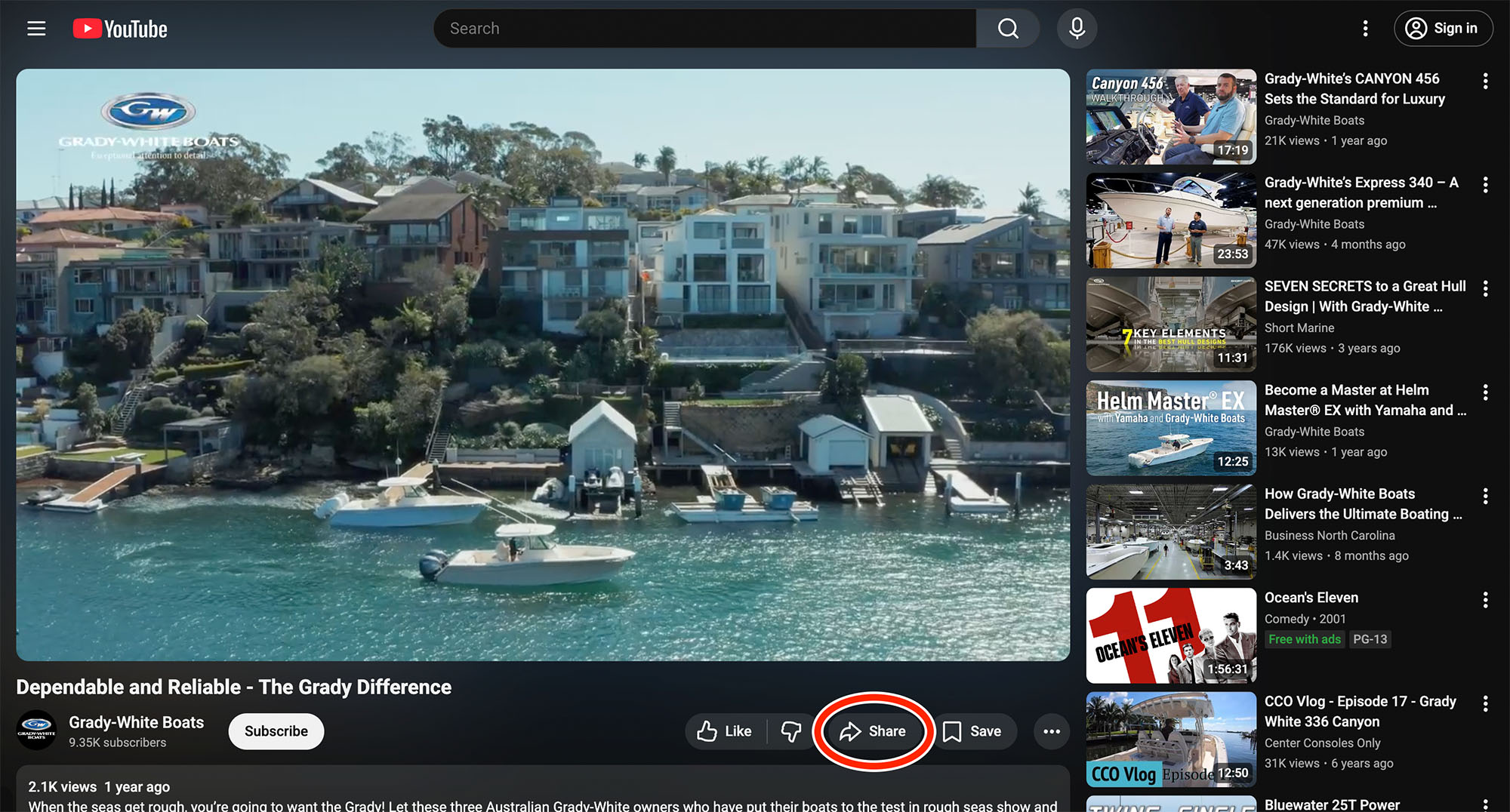
Step 2: Once you’ve found the video you want to embed, click on the Share button below the video.
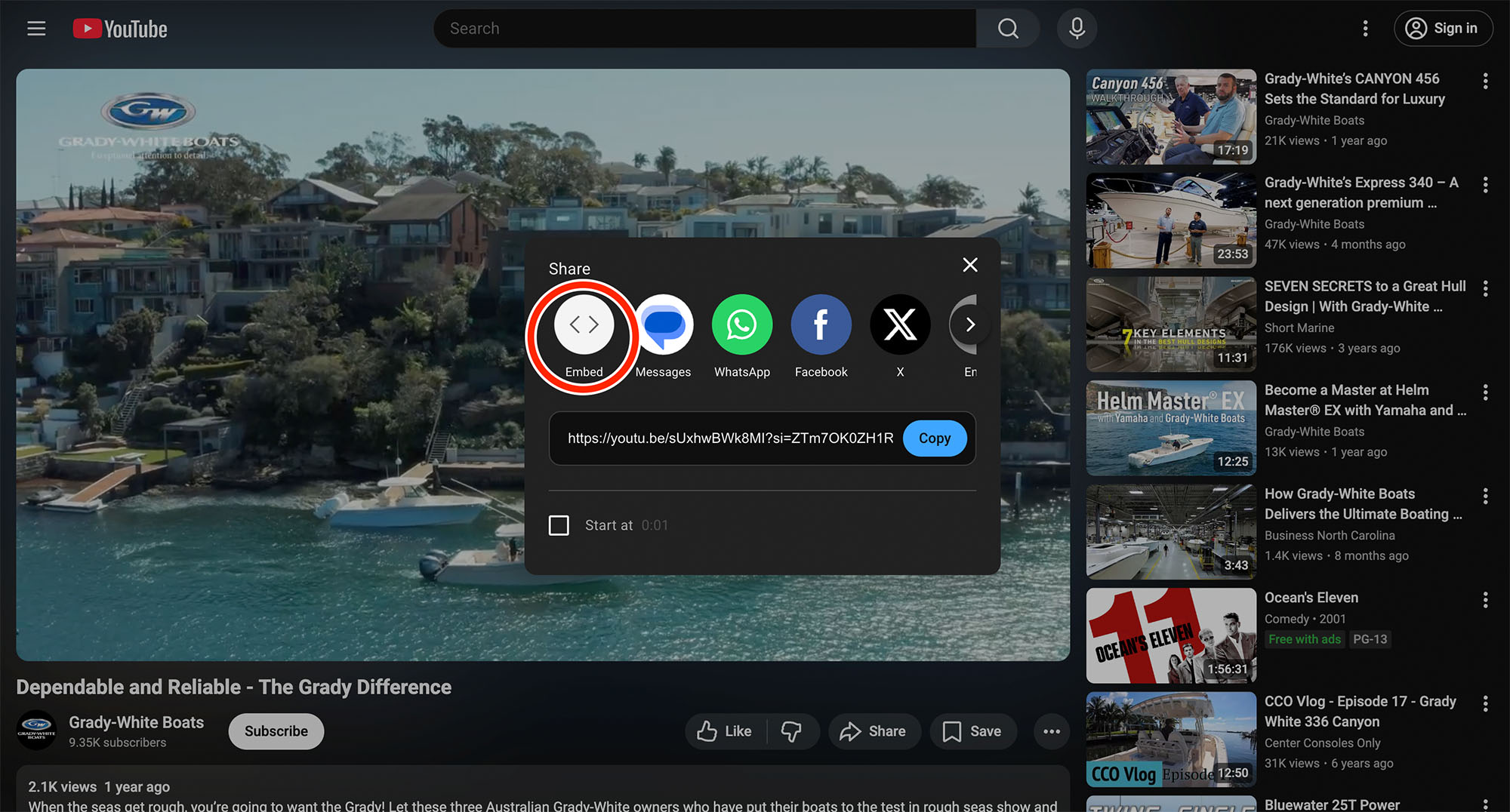
Step 3: Click on the Embed button.
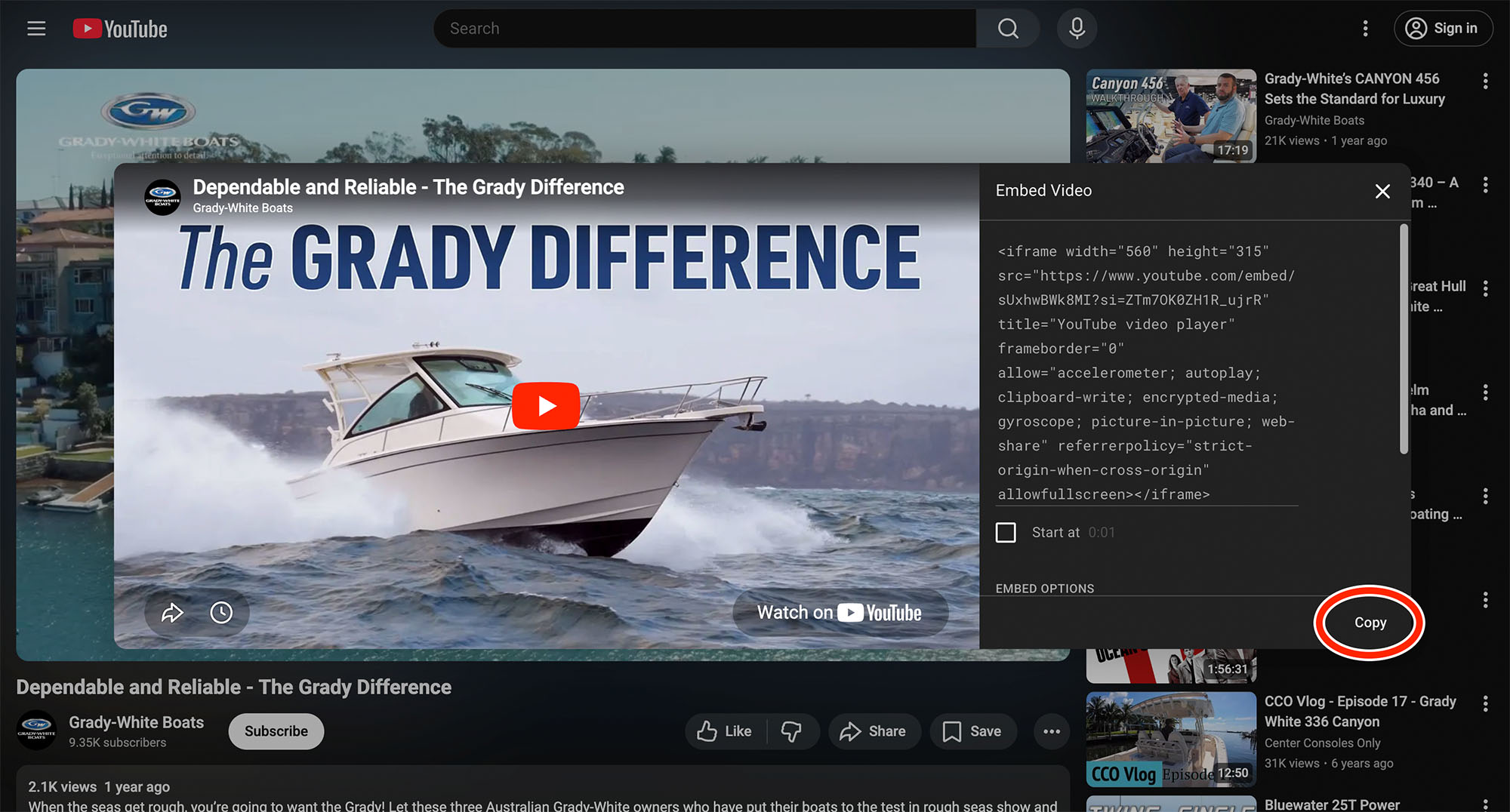
Step 4: Click the Copy button to copy the embedding code, and then paste it into your website where you want the video to appear. If you aren’t familiar with how to paste code into your website, contact your website administrator for help.
That’s it! The video should now appear in your website in the location where the embedding code was added.